Creating Extensions
Custom extensions allow to include more sections or attach files to user's reports. Creating a custom section or file extension is a very straightforward process, as both extensions must derive from an interface, which contains all required methods and properties by default.
Adding custom extensions to the feedback form is the exact same process as when using included extensions. For more information on how to use data extensions, refer to Feedback Data or the Scripting API.
Section Extension
All section extensions must derive from the IFeedbackDataSection interface.
The interface requires a string property named Title, which will be used as the title of the section, and a method GetData() which must return whatever content this section will have in a formatted string.
The following example will include a new section titled "System Information", which will display some of the user's system information:
using UnityEngine;

public class ExampleExtension : IFeedbackDataSection {
  public string Title => "System Information";

	public string GetData() {
		return $"OS: {SystemInfo.operatingSystem}\n" +
			     $"CPU: {SystemInfo.processorType}\n" +
			     $"RAM: {SystemInfo.systemMemorySize} MB\n" +
			     $"GPU: {SystemInfo.graphicsDeviceName}\n" +
			     $"LANG: {Application.systemLanguage}";
	}
}
var data = new FeedbackData(
  "Title",
  "Summary",
  new IFeedbackDataSection[] {
    new ExampleExtension()
  });

Feedback.Send(data);
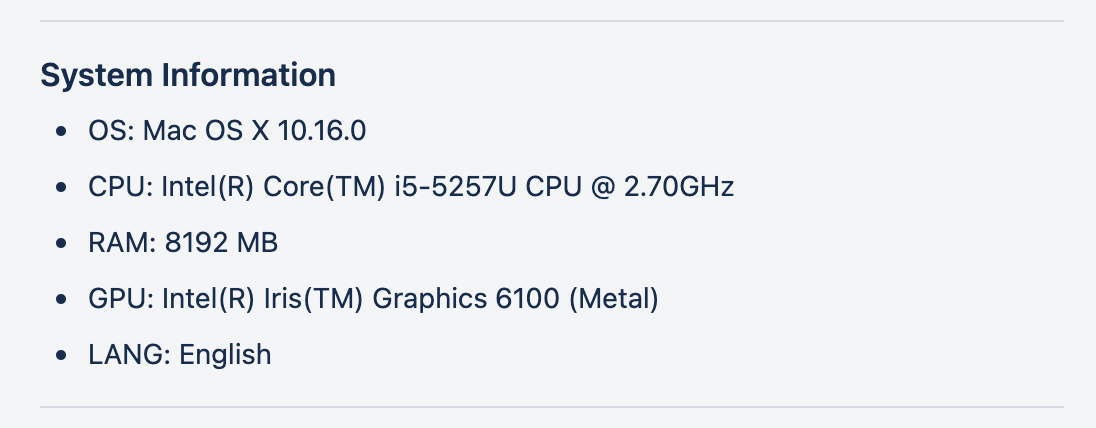
Note
The only constrain that section extensions have, is that GetData() is only called when the form is about to be submitted. Other than that, section extensions can return any data or run any logic. The only requirement is that data should be returned immediately when requested.
File Extension
All file extensions must derive from the IFeedbackDataFile interface.
The interface requires a single method to be implemented GetFileAsync(), which must return a Tuple<string, byte[]> with the file name and the file contents, in that order. Files normally require IO operations, therefore this method expects an awaitable task (Task<Tuple<string, byte[]>>) as the return type.
If you are unfamiliar with asynchronous programming, the main concepts are covered here. You are also encouraged to read through the included ScreenshotExtension extension to understand how files are normally generated, read and returned.
To read files asynchronously, refer to Microsoft's documentation.
Although not recommended (as it will produce visible stutters depending on the file) GetFileAsync() can execute code synchronously. The following example illustrates how to read a file synchronously:
public Task<Tuple<string, byte[]>> GetFileAsync() {
  var data = System.IO.File.ReadAllBytes("path/to/file.txt");
  return Task.FromResult(new Tuple<string, byte[]>("fileName", data));
}
Note
Some integrations may not support file uploads. Normally this is a service API limitation and there are no workarounds, other than uploading files to a separate service first. Check each integration's documentation for more information on file support. The "Example API" does not support file uploads.
Note
The included "Example API" does not support file uploads.